- Go to GovConnectIowa
If you have not created a logon in GovConnectIowa you will need to do so by clicking on the “Create a Logon” link. Any previous CACTAS logons will not work.

- Creating the Logon Instructions
- You will need to complete all required information on the Logon Information page and select next when that has been completed.
- Complete the Email Validation
- Answer No on the Bulk Filer page
- Answer No on the Account Access page
- Submit your request
- Creating the Logon Instructions
- You should then be able to enter your username and password. You will then need to set up your two-step verification.
Once you are logged in you will be taken to the homepage where you can select the “Apply for a Tax Credit Transfer” hyperlink
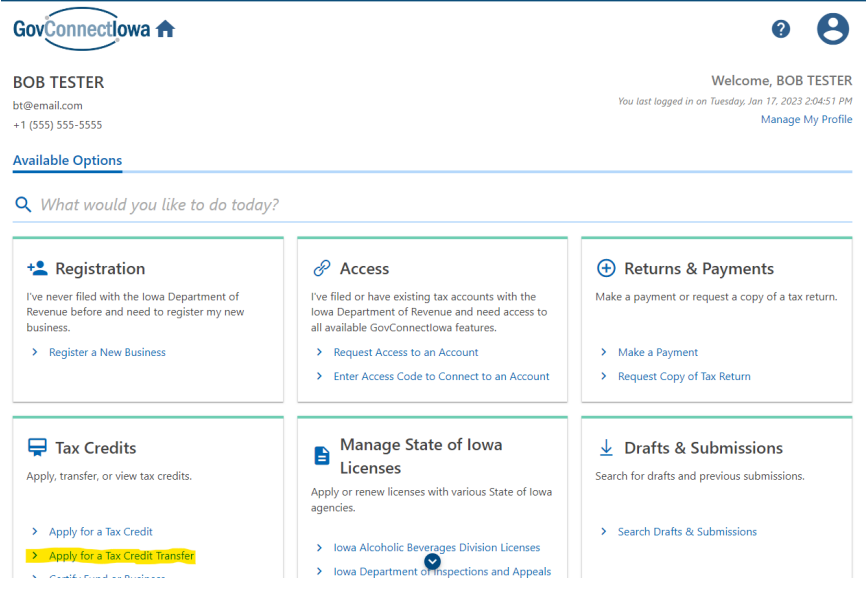
- Answer the question regarding whether you are transferring a Tax Credit.
- On the General Information page, enter your information in the Authorized Transfer Contact section. This will be the information used if there are any questions regarding this particular transfer request.
- In the Certificate Mailing Information section enter and validate the address of where the completed tax credit certificate(s) should be mailed.
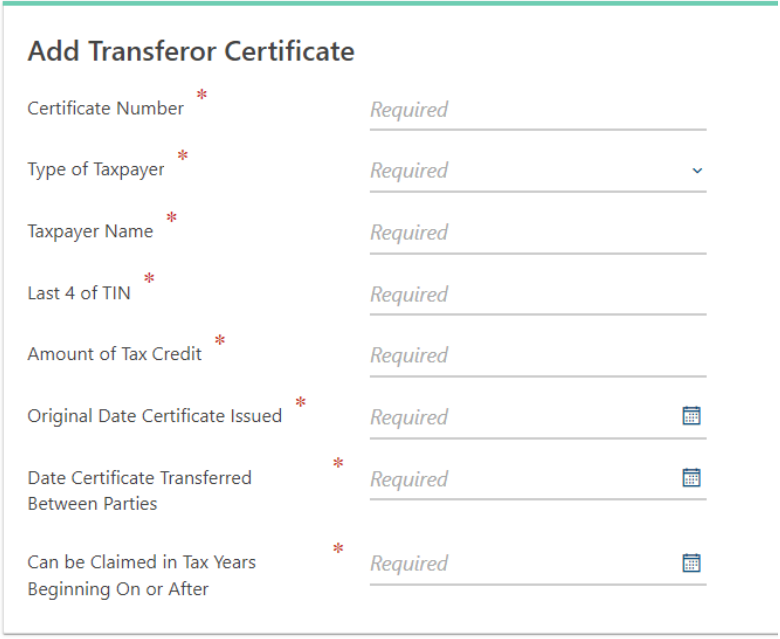
Note: all certificates will be mailed to the same address. Enter the information from the tax credit certificate on the Certificate to be Transferred Information page. All fields are required. If you receive any errors, please contact [email protected] and provide a copy of the certificate that you are attempting to transfer.
Select the “+ Add Transferree” on the Certificate Allocation page.
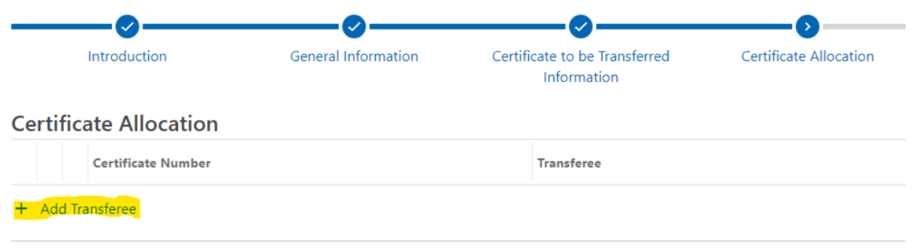
Selecting the “+ Add Transferree” will bring up the request for information regarding the entity the credit is being transferred to and then you will need to scroll down in that box to add the certificate allocation before you select the Add button.
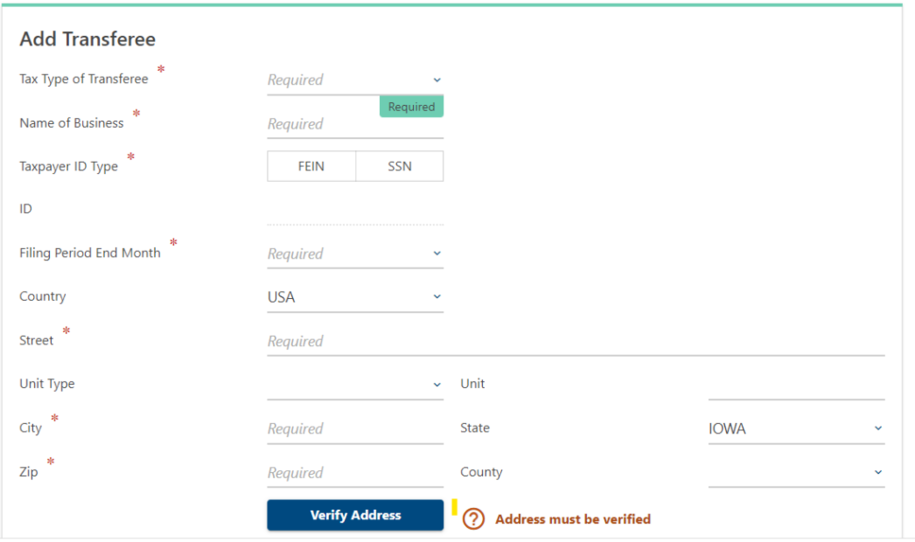
Scroll down for allocation section
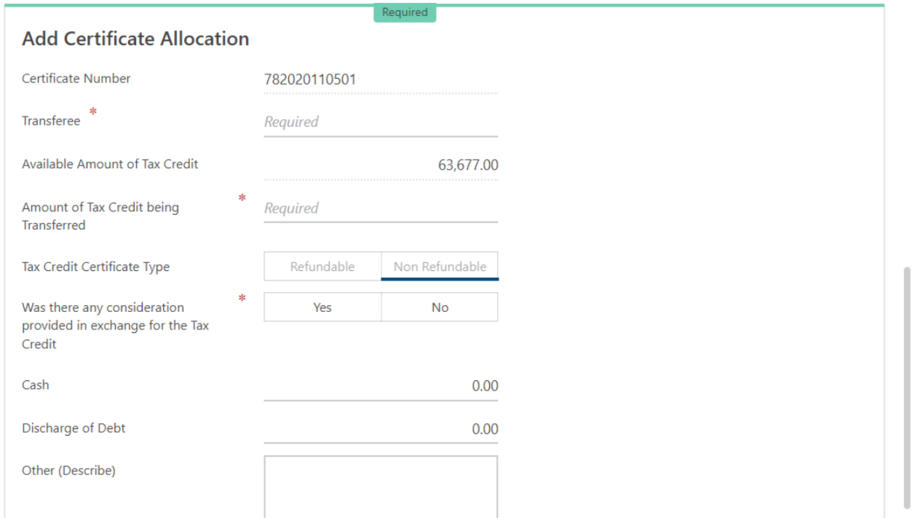
Note: If you are transferring more than one Tax Credit you will only be able to enter one transferee. For all other requests you can enter more than one transferee by selecting the “+ Add Transferee” hyperlink for each transferee that needs to be added.- You are required to attach a copy of the issued certificate. You may also attach any additional documentation that you feel is pertinent to the request.
- Review the information provided and submit the request.
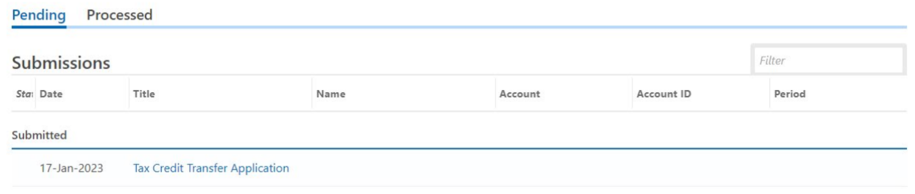
You can verify that your request has been submitted by selecting the “Search Drafts & Submissions” hyperlink on the homepage.
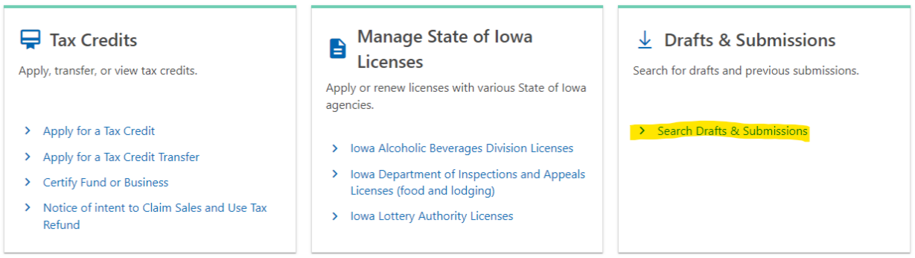
Selecting that link after submission will show you the status of your request.
Requests that are pending will show up on the Pending tab. Requests that have been completed will show up under the Processed tab